We call Guidelines to a set of auxiliary vertical and/or horizontal lines you can insert in the workspace to help with objects alignment and placement.
|
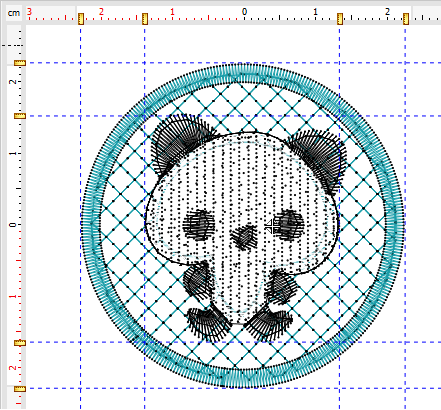
How add a Guideline?
Follow this procedure:
➢Place the mouse pointer over one of the rulers (vertical or horizontal).
➢Press the CTRL key and press the left mouse button.
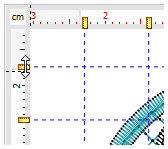
➢Drag the mouse (move the mouse while you hold both CTRL key and the left button of the mouse). A guideline will appear and follow the mouse pointer while you drag.
➢Once the pointer reaches the position you want, release the mouse button.
➢Repeat this procedure for each guideline you want to add.
How change the Guideline position?
Follow this procedure:
➢Place the mouse pointer over one of the guidelines.
➢Drag it (press and hold the left button of the mouse while moving the mouse) to the new position.
|
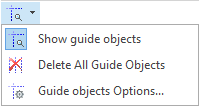
Show/Hide Guidelines
Show or hide all the guidelines from the corresponding button on the Main Bar.
|
No need to press the drop-down arrow to toggle between the show or hide functions.
|
More Guideline Functions
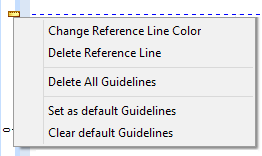
Right click on the guideline icon to open a context menu that contains several functions related to guidelines.
|
You can: •Change the guideline color •Delete the guideline •Delete all guidelines •Set guideline as default •Reset guidelines default |