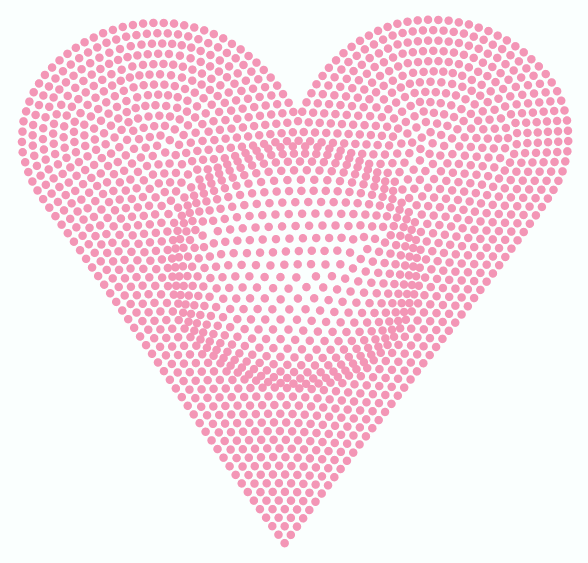
It adds a sphere effect to a bling object.
|
Sample video including Sphere Effect |
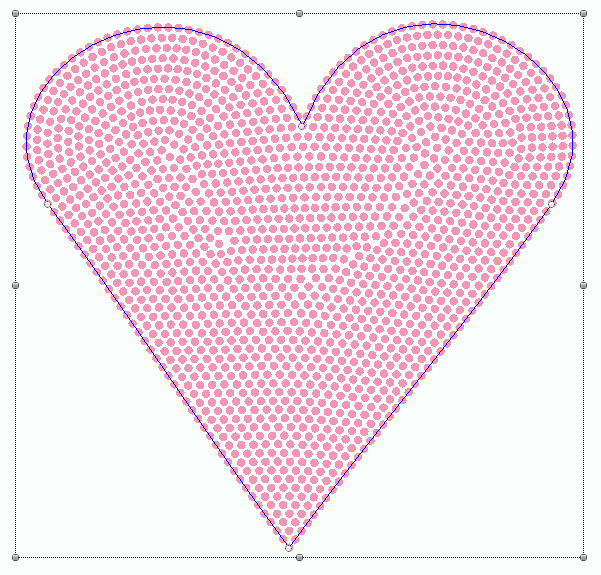
How to apply this effect on a bling object?
➢Select the bling object. |
|
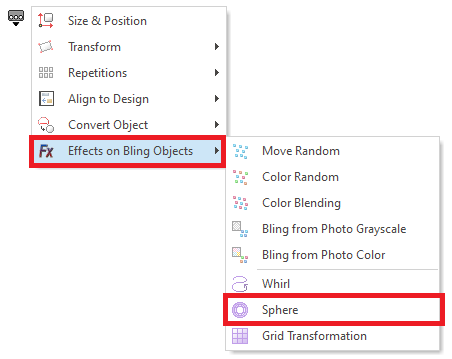
➢Open the Block Menu ➢Click on "Effects on Bling Objects" ➢Click on "Sphere" |
|
➢Place the mouse on the bling object, exactly where you want to set the center of the sphere. ➢Press and hold the mouse left button, then move the cursor (drag) to define the radius of the circular area to modify. Release the mouse left button when finished. ➢To modify the position of the circle, place the mouse cursor inside the circle and drag it to move the circle. ➢To modify the size of the circle, place the mouse cursor on the outline of the circle and drag it to change the size. |
|
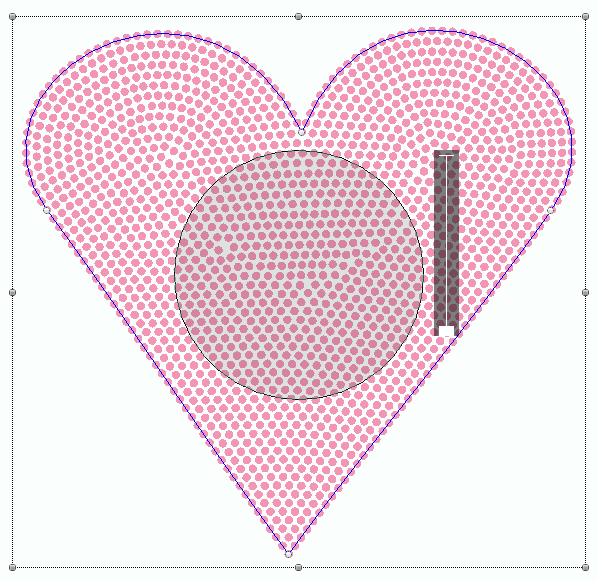
The amplitude selector is located at the upper right side of the circle. ➢Drag the selector up or down to specify the amplitude of the effect. You can see the result in real time. ➢Press the Enter key or select Accept/OK from the context menu. |
|
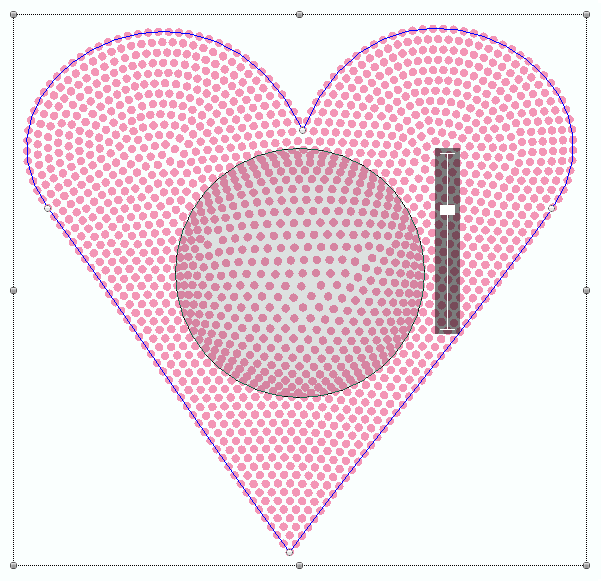
This is the result. |
|
This feature is included in the Bling Effect Pack |